CRM Lead Import: What to Do Before You Start
For instance, a clean CRM lead import is the foundation of every successful outreach campaign. Import your leads wrong, and you will spend weeks fixing duplicates, broken fields, and lost data.
In addition, you just purchased a list of 5,000 verified Dubai leads. Therefore, you download the CSV, open your CRM, click “Import,” and 20 minutes later your sales team is staring at a database full of duplicates, mismatched fields, broken phone numbers, and contacts assigned to the wrong pipeline stage. Therefore, you have just turned a clean lead list into a data quality nightmare.
CRM lead import failures happen more often than anyone admits. For example, a 2024 Salesforce study found that 91% of CRM data is incomplete, and 70% of that data degrades annually. Additionally, the import process itself — not the quality of the original data — is responsible for a significant portion of CRM data problems.
The Most Common CRM Lead Import Failures
Follow HubSpot’s official import documentation for the most up-to-date field requirements and file formats.
- Field mapping errors: “Company Name” in your CSV maps to “Account Name” in your CRM, but “Company” maps to a custom field you forgot existed. One letter difference, two completely different results.
- Duplicate creation: You import 5,000 leads, but 800 of them already exist in your CRM under slightly different names or email variations. Now you have 800 duplicate records cluttering your database and confusing your sales team.
- Format mismatches: UAE phone numbers that start with +971 get imported as scientific notation in Excel (9.71E+11) before you even upload the file. Date formats flip between DD/MM/YYYY (UAE standard) and MM/DD/YYYY (US standard).
- Missing required fields: Your CRM requires a “Lead Source” for every record, but your CSV does not have that column. Additionally, the import either fails entirely or creates records with blank required fields that break your reporting.
- Encoding issues: Arabic company names and contact names with diacritical marks get corrupted during import if your CSV is not properly encoded in UTF-8.
Indeed, every one of these CRM lead import problems is preventable. Additionally, the following sections walk you through the complete CRM lead import process, from CSV preparation to post-import verification.
Pre-Import Checklist: Cleaning Your CSV Before Upload
Before your lead data goes anywhere near your CRM, clean it in the CSV. As a result, this CRM lead import prep step takes 20-30 minutes and prevents hours of cleanup later.
1. Open the file in a proper CSV editor, not Excel. Excel automatically reformats data — it converts long numbers to scientific notation, changes date formats, and strips leading zeros from phone numbers. Importantly, use Google Sheets (which handles CSV more predictably) or a dedicated CSV editor like CSVed or Rainbow CSV (a VS Code extension). If you must use Excel, import the CSV using the “Import from Text/CSV” method and set all columns to “Text” format before loading.
2. Standardize phone number formats. UAE mobile numbers should follow the format +971 5X XXX XXXX. Landlines: +971 X XXX XXXX. Remove any spaces, dashes, or parentheses and store numbers in the international format with the + prefix. If your CSV has numbers starting with 05 (local format), prepend +971 and remove the leading zero.
Email, Name, and Format Checks
3. Verify email format. Run a basic format check: every email must contain exactly one @ symbol, a domain with at least one dot, and no spaces. For deeper verification — checking whether the email actually exists and accepts mail — use a verification service before import. See our email list cleaning guide for the complete process and recommended tools.
4. Standardize company names. Decide on a convention and apply it: “LLC” vs “L.L.C.” vs “Limited Liability Company.” In the UAE market, you will encounter Arabic company names alongside English ones, and both “FZ-LLC” and “Free Zone LLC” variations. Pick one format and standardize. As a result, this is critical for CRM lead import deduplication later.
5. Clean name fields. Remove titles (Mr., Mrs., Dr., Eng., Sheikh) from the first name field — store them in a separate “Title” or “Salutation” field. Additionally, check for accidental name-email swaps (it happens more than you think). Capitalize properly: “mohammed” becomes “Mohammed,” not “MOHAMMED.”
Encoding and Required Fields
6. Ensure UTF-8 encoding. If your CSV contains Arabic text (and UAE lead lists often do — company names, contact names, addresses), save the file with UTF-8 encoding. In Google Sheets, this happens automatically on export. In Excel, choose “CSV UTF-8 (Comma delimited)” from the Save As dialog.
7. Add required CRM fields. Check what fields your CRM requires for a lead record and add columns for any that are missing from your CSV. Common required fields include Lead Source (set to “Purchased List” or “DubaiLeads.io”), Lead Status (set to “New”), and Owner (the sales rep who will work the lead).
8. Remove blank rows and extra headers. CSV files exported from different systems sometimes include blank rows, secondary header rows, or summary rows at the bottom. Delete all of them. Accordingly, your CRM will try to import them as records.
Field Mapping: Matching Lead Data to CRM Fields
Field mapping is where your CSV column headers get matched to your CRM’s internal field names. As a result, this is the step that determines whether your data ends up in the right places — or scattered across wrong fields where it becomes invisible to your sales team.
Create a mapping document before you import. A simple spreadsheet with three columns works:
- Column A: Your CSV header name (e.g., “Company”)
- Column B: Your CRM field name (e.g., “Account Name”)
- Column C: Any transformation needed (e.g., “Append ‘LLC’ if missing”)
Common field mapping challenges for UAE lead data:
Mapping UAE-Specific Field Types
Name fields: Your CSV may have a single “Full Name” column, but your CRM has separate “First Name” and “Last Name” fields. Split the data before import. For Arabic names, be aware that naming conventions differ — some contacts use a single given name and a family name, while others have a patronymic structure (e.g., Mohammed bin Ahmed Al Maktoum). Map the full family name to “Last Name” and the given name to “First Name.”
Address fields: UAE addresses often do not follow the Western street-number-city-zip format. You might have “Office 1205, Tower B, Business Bay, Dubai” as a single line. In fact, most CRMs expect separate fields for Street, City, State/Province, and Zip/Postal Code. Map the office/building to Street, the area (Business Bay, JLT, DIFC) to a custom “Area” field, and Dubai/Abu Dhabi/Sharjah to City. The UAE does not widely use postal codes, so leave that field blank rather than inventing values.
Industry fields: Your CSV might use specific industry classifications (“Real Estate Development,” “Fintech,” “Oil & Gas Services”) while your CRM has a fixed picklist with broader categories (“Real Estate,” “Financial Services,” “Energy”). Map to the closest CRM picklist value and store the specific classification in a custom “Sub-Industry” text field.
Custom fields: If your lead data includes UAE-specific fields like “Trade License Number,” “Free Zone,” or “Emirates ID Status,” create custom fields in your CRM before import. Do not try to force this data into existing fields where it does not belong.
Deduplication Strategies (Exact Match vs. Fuzzy Match)
Duplicates are the silent killer of CRM data quality. Consequently, they split your engagement history across multiple records, cause embarrassing double-outreach, and corrupt your reporting metrics. If you are importing purchased leads into a CRM that already contains existing contacts, deduplication is mandatory.
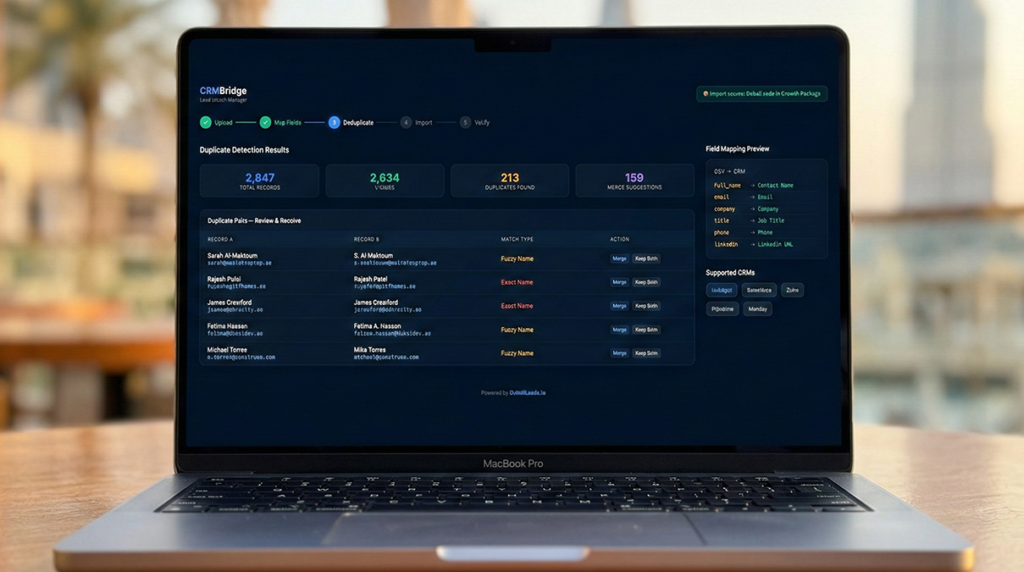
Exact match deduplication is the simplest approach. Notably, it identifies duplicates based on an exact match of one or more fields — typically the email address. If your CSV contains “ahmed@company.ae” and your CRM already has “ahmed@company.ae,” the system flags it as a duplicate.
Exact match catches the obvious duplicates, but misses variations like:
- “ahmed@company.ae” vs. “a.hassan@company.ae” (same person, two email addresses)
- “Ahmed Hassan” at “ABC Trading LLC” vs. “Ahmed Hassan” at “ABC Trading” (same company, slightly different name)
- “+971501234567” vs. “0501234567” (same phone, different format)
Fuzzy Match Deduplication
Fuzzy match deduplication uses algorithms to identify records that are likely the same person despite minor differences. Most CRMs offer some level of fuzzy matching, and dedicated deduplication tools (Dedupely, Insycle, RingLead) provide more sophisticated matching.
Recommended fuzzy match criteria for UAE lead data:
- Primary match: Email address (exact match) — if the email matches, it is the same contact
- Secondary match: First Name + Last Name + Company Name (fuzzy, 85% similarity threshold) — catches name variations and company name inconsistencies
- Tertiary match: Phone number (normalized format) — catches contacts with different emails but the same mobile number
What to do with identified duplicates:
- If the existing CRM record has engagement history (sent emails, calls logged, meetings scheduled): keep the existing record and merge the new data into it. Do not overwrite existing notes or activity history.
- If the existing CRM record is stale (no activity in 6+ months, outdated job title): update the existing record with the new data but preserve the engagement history.
- If you are not sure: Flag the record for manual review rather than auto-merging. A sales rep can resolve the duplicate in 30 seconds; an automated merge can destroy data permanently.
Platform-Specific Guides: HubSpot, Salesforce, Zoho, Pipedrive
Indeed, every CRM handles imports differently. Importantly, here are the critical details for the four most common platforms in the Dubai B2B market.
HubSpot
- Import path: Contacts > Import > File from computer > One file > One object
- Deduplication: HubSpot automatically deduplicates based on email address during import. If a matching email exists, it updates the existing record rather than creating a new one. This is usually the behavior you want, but verify that it is not overwriting data you want to keep.
- File limit: 1,048,576 rows or 512 MB per file. For most lead lists this is not a constraint.
- Field mapping: HubSpot auto-maps fields with matching names and lets you manually map the rest. Save your mapping as a template if you plan to import leads regularly.
- Post-import: HubSpot creates a list of all imported contacts automatically. Use this list to trigger workflows (covered in the next section).
- Gotcha: HubSpot’s default date format is MM/DD/YYYY. If your CSV uses DD/MM/YYYY (standard in the UAE), dates will be incorrectly parsed. Convert before import.
Salesforce
- Import path: Use the Data Import Wizard for under 50,000 records, or Data Loader for larger imports.
- Deduplication: Salesforce does not auto-deduplicate during import. You must either use matching rules (Setup > Duplicate Management > Matching Rules) or run deduplication after import using a tool like Duplicate Check or DemandTools.
- Lead vs. Contact: Decide before import whether your purchased leads should be Leads (unqualified) or Contacts (qualified with an associated Account). For purchased lead lists, import as Leads and let your sales team convert qualified ones to Contacts through your normal qualification process.
- Field mapping: Salesforce is strict about field types. If you try to map a text value to a number field, the import fails. Verify data types before mapping.
- Gotcha: Salesforce picklist fields reject values that do not match existing picklist options. Add any new picklist values (industries, sources, statuses) before importing.
Zoho CRM
- Import path: Leads module > Import > From File > Choose CSV
- Deduplication: Zoho offers three options during import: overwrite existing records, clone (create duplicates), or skip duplicates. Choose “skip” for the initial import, then review and merge duplicates manually using Zoho’s built-in Deduplicate tool (Setup > Data Administration > Deduplicate).
- File limit: 25,000 records per import for standard plans. Enterprise plans support up to 100,000.
- Field mapping: Zoho auto-maps by header name and supports saving mapping templates. Map custom fields before starting the import.
- Gotcha: Zoho’s phone field validation can reject UAE numbers formatted with spaces. Use the compact format (+971501234567) without any spaces or dashes.
Pipedrive
- Import path: Click the “…” menu > Import data > From a spreadsheet
- Deduplication: Pipedrive checks for duplicates based on the fields you select during import. Notably, it can either merge, skip, or create a new record. Default duplicate detection is based on Person name + Organization name.
- Structure note: Pipedrive uses a People + Organizations + Deals structure rather than Leads + Accounts. Map your lead’s company name to “Organization” and their personal details to “Person.” Do not create Deals during the import — create Deals only when a sales conversation has been initiated.
- Field mapping: Pipedrive’s field mapping interface is straightforward but does not support complex transformations. Clean your data completely before import.
- Gotcha: Pipedrive’s free and Essential plans have limited custom field support. Verify your plan supports the number of custom fields you need before creating them.
Setting Up Automated Workflows Post-Import (Lead Scoring, Assignment, Nurture Sequences)
Specifically, your leads are in the CRM. The data is clean. Now you need to make sure something actually happens with those leads. A list sitting in your CRM with no automated follow-up is worthless within 72 hours. Response rates to purchased leads drop by 90% after the first week if no outreach is initiated.
Lead scoring: Assign a numerical score to each imported lead based on how closely they match your ideal customer profile. Factors to score on:
- Job title match (0-25 points): C-suite = 25, VP/Director = 20, Manager = 15, Other = 5
- Company size match (0-20 points): Based on your ideal customer size range
- Industry match (0-20 points): Core target industry = 20, Adjacent industry = 10, Non-target = 0
- Location relevance (0-15 points): Dubai = 15, Abu Dhabi = 12, Other emirates = 8, Other GCC = 5
- Data completeness (0-20 points): Has email + phone + company + title = 20, missing one field = 15, missing two+ = 5
Leads scoring 70+ should be routed to sales immediately. Leads scoring 40-69 should enter a nurture sequence. Leads scoring below 40 should be reviewed — they may not be worth pursuing or may need enrichment.
Lead Assignment Rules
Lead assignment: Set up automatic assignment rules so leads do not sit unowned in the CRM. Common assignment approaches:
- Round-robin: Distribute leads equally across your sales team
- Territory-based: Assign based on the lead’s location or industry (e.g., all DIFC financial services leads go to your financial services specialist)
- Score-based: High-scoring leads go to your most experienced reps; lower-scoring leads go to SDRs for qualification
Nurture sequences: For leads that are not ready for immediate sales outreach, set up an automated email nurture sequence. A 5-email follow-up sequence over 14 days is the most effective approach — we break down the exact sequence, timing, and templates in our follow-up sequence guide.
In your CRM, create a workflow that triggers automatically when a new lead is imported with a specific Lead Source (e.g., “DubaiLeads.io”) and meets your scoring threshold. The workflow should: assign an owner, enroll the lead in your follow-up sequence, and create a task for the owner to review the lead within 24 hours.
Segmentation Strategies for Purchased Lead Lists
A purchased lead list is not a single campaign. It is a raw material that needs to be segmented into targeted groups, each receiving different messaging, timing, and value propositions. Sending the same email to a CEO in real estate and a marketing manager in fintech is not cold outreach — it is spam.
Effective segmentation categories for UAE lead lists:
By seniority level:
- C-Suite / Founders: Shorter emails, bigger-picture value propositions, ROI-focused language, request for referral to the right team member if they are not the hands-on decision-maker
- VP / Director: More detailed problem-solution framing, specific metrics and case studies, direct meeting requests
- Manager / Specialist: Tactical value propositions, “make your job easier” framing, offer to include their manager in the conversation
By industry vertical:
- Create separate campaigns for each major industry in your list (real estate, financial services, technology, hospitality, trading, etc.)
- Customize pain points, case studies, and terminology for each vertical
- Reference industry-specific regulations, trends, or events (e.g., “With Dubai’s new Golden Visa regulations affecting tech companies…”)
Segmenting by Company Type and Data Quality
- Free zone companies: Reference the specific free zone (DMCC, JAFZA, DIFC, DAFZA) and any zone-specific advantages or challenges
- Mainland LLCs: Reference DED regulations, local sponsor dynamics (for those still under the old structure), and mainland-specific growth patterns
- Multinational regional HQs: Focus on GCC-wide value propositions, reference their regional footprint, and acknowledge that decisions may involve stakeholders in multiple countries
By data quality:
- Complete records (name, title, email, phone, company, industry): Priority outreach with multi-channel sequence (email + LinkedIn + WhatsApp)
- Partial records (email only, or missing phone): Email-only sequence, with enrichment as a secondary task
- Enrichment needed (company name but no contact name): Enrich using LinkedIn Sales Navigator or Apollo before adding to any campaign
Create CRM views or smart lists for each segment. This allows your sales team to see exactly which leads belong to which campaign and track performance by segment rather than across the entire imported list.
Maintaining Data Hygiene After Import (Ongoing Verification Schedule)
Specifically, your CRM data starts degrading the moment you import it. People change jobs (the average UAE executive tenure is 2-3 years), companies rebrand or merge, email addresses get deactivated, and phone numbers change. Without ongoing data hygiene, your 5,000-contact database will have 1,500 stale records within 12 months.
Set up this maintenance schedule and do not skip it:
Weekly (15 minutes):
- Review and process bounced emails from the past week. Hard bounces (permanent failures) should trigger an immediate status change to “Invalid” and removal from active campaigns.
- Process any unsubscribe requests that were not automatically handled by your email tool.
- Review and merge any new duplicates identified by your CRM’s duplicate detection.
Monthly and Quarterly Checks
Monthly (1 hour):
- Run an email verification check on your active contact list using a tool like ZeroBounce, NeverBounce, or Hunter.io. Remove or flag contacts whose emails are no longer valid.
- Review contacts with zero engagement (no opens, no clicks, no replies) over the past 30 days. Either re-verify their email addresses or move them to a “Dormant” status.
- Check for contacts who have changed job titles on LinkedIn. A “Head of Marketing” who is now a “Freelance Consultant” may no longer be your target buyer.
Quarterly (half day):
- Full database audit: run your entire contact database through an email verification service. Expect 5-10% of emails to have become invalid each quarter.
- Re-score all leads based on updated data. Contacts who have been promoted, changed companies, or whose companies have grown may now score higher or lower.
- Archive contacts with no engagement over the past 90 days to a separate list. Do not delete them (they may become relevant if they move to a new company), but remove them from active campaign lists.
- Review and update your field mapping documentation if your CRM schema has changed.
Annual Database Refresh
- Complete database refresh. Compare your existing contacts against a fresh lead list from your provider to identify contacts who have changed companies, roles, or contact information.
- Review and update your lead scoring model based on the past year’s conversion data. Which segments actually converted? Adjust scoring weights accordingly.
- Purge truly dead data: contacts who have not engaged in 12+ months, companies that have closed or been acquired, and email addresses that have been invalid for 6+ months.
Furthermore, the goal of data hygiene after CRM lead import is not perfection — it is maintaining a database where your sales team can trust the information they see. A CRM with 3,000 verified, accurate contacts is infinitely more valuable than one with 10,000 records of unknown quality.
DubaiLeads.io exports are formatted for direct CRM import — columns are pre-labeled to match standard CRM field names, phone numbers are in international format, and every email address is verified before delivery. This eliminates most of the pre-import cleanup work described above and gives you a clean foundation for your CRM data.
Start with clean data. Follow the CRM lead import process properly. Maintain it consistently. Accordingly, your CRM will reward you with accurate reporting, efficient sales workflows, and a pipeline you can actually trust.
This article is part of our comprehensive B2B Lead Generation in Dubai: The 2026 Playbook — the complete guide to generating pipeline in the UAE market.